With hands-free access to music, messages, calls, and navigation while driving, Android Auto has grown to be a necessary driving companion for millions of Android users. However, many users have experienced unanticipated problems as a result of the most recent Android Auto 17.2 upgrade. Many drivers experienced Android Auto crashing unexpectedly, failing to load specific applications, or disconnecting while in use shortly after applying the update.
Although not every user has encountered these issues, the increasing number of complaints indicates that a range of smartphones, cars, and Android versions are impacted.
This post will discuss why the Android Auto 17.2 update is causing app crashes, what users are experiencing, potential sources of the issue, and workable fixes you can try until an official patch is released.
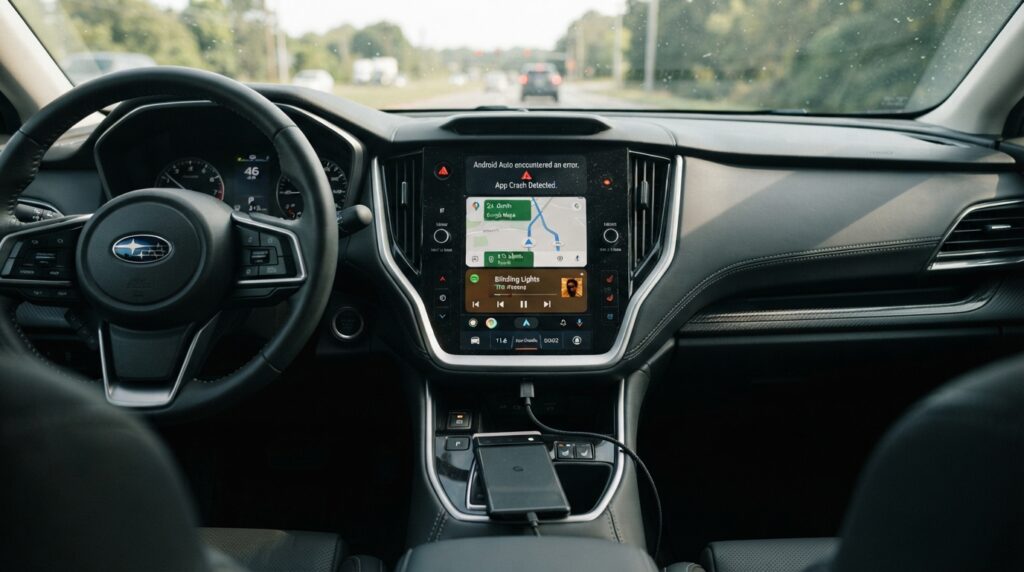
Android Auto 17.2: What Is It?
Google’s Android Auto platform connects Android smartphones to infotainment systems in compatible cars. After connecting, drivers can use their car’s display to safely access Google Maps, Spotify, YouTube Music, WhatsApp, and other compatible apps.
As part of Google’s routine update cycle, version 17.2 was made available. Background upgrades, bug fixes, compatibility improvements, and speed optimisations are all included in the update. However, several users started experiencing unanticipated stability problems right once after updating, as is sometimes the case with significant software releases.
What Issues Do Users Report?
Applications abruptly crashing when Android Auto is operating is the most frequent complaint. Users frequently claim that apps unexpectedly cease or stop responding after a few minutes of typical operation.
Among the problems that are commonly cited are:
Android Auto abruptly shutting down
When navigating, Google Maps freezes
Spotify abruptly halts playback
WhatsApp won’t open
The voice assistant is not responding.
Unpredictable disconnections from the car
After connecting the phone, a black screen appears.
The screen keeps loading.
The driving experience can be greatly impacted by these issues, particularly for users who depend on hands-free communication or navigation during regular trips.
Potential Causes of the Crashes
Google hasn’t identified a single cause, although there are a number of potential contributing factors.
- Issues with software compatibility
Due to variations in Android versions or software modifications made by manufacturers, some smartphones might not completely support the most recent version of Android Auto.
- After updating, the cache became corrupted
Applications may operate erratically during software updates due to conflicts between the old and new cache files.
- Conflicts with Apps
It’s possible that third-party Android Auto apps aren’t yet optimised for version 17.2. This may cause apps for chat, music, or navigation to crash.
- Compatibility with Vehicle Infotainment
Android Auto and infotainment firmware upgrades are released independently by some automakers. The most recent version of Android Auto may not work with older head-unit software.
- Issues with USB or Wireless Connectivity
Users may experience sporadic crashes that seem to be software-related while connecting via defective USB cables or erratic wifi Android Auto connections.
Which Apps Are Most Frequently Affected?
Several well-known apps show up more frequently in user chats, however reports differ between devices.
Maps on Google
During active routes, navigation may abruptly stop or freeze.
Spotify
Users may need to reconnect when playback abruptly ceases.
Music on YouTube
Some users report that music apps close unexpectedly or keep buffering immediately after playback begins.
Sometimes notifications and voice messages don’t load correctly.
Mobile App
Android Auto may not properly display incoming calls.
How to Resolve App Crashes on Android Auto 17.2
These troubleshooting techniques can be useful until Google issues an official patch.
Give your phone a restart.
Many little program conflicts are resolved and temporary system processes are cleared with a simple restart.
Android Auto Cache Clearing
Visit:
Android Auto → Storage → Settings → Apps → Clear Cache
Additionally, clear app storage if needed.
Update Every Related App
Launch the Google Play Store and do an update:
Android Auto
Maps on Google
Services on Google Play
WhatsApp, Spotify, and Google Assistant
Compatibility issues are decreased by keeping all apps updated.
Examine the USB cable
Try the following if your Android Auto is wired:
The original USB cord
High-quality USB data cable
An alternative USB port
Unexpected disconnections are frequently caused by subpar charging cables.
Reconnect Android Auto
Take your car out of the Android Auto settings.
Next, reconnect the phone from the beginning.
After reconfiguring Android Auto, many users notice increased stability.
Restart the infotainment system in your vehicle.
After Android Auto updates, certain cars need to restart their systems.
For instructions on how to reset your car, go to the handbook.
Verify Software Updates for Vehicles
Vehicle manufacturers regularly release firmware updates designed to improve Android Auto performance, stability, and compatibility.
Connectivity problems could be fixed by installing the most recent infotainment software.
Is Google Developing a Solution?
Google usually keeps an eye on customer comments via beta testing channels, Play Store reviews, and support forums. The corporation usually delivers a bug-fix update over the next few weeks if significant problems are proven.
Users should use the Android Auto settings to directly report crashes. Developers can find trends and prioritise repairs with the aid of comprehensive reports.
Does Android Auto Need to Be Downgraded?
Reverting to an older version of Android Auto is generally not recommended unless you have experience installing trusted APK files manually.
Compatibility issues with more recent Android devices or security vulnerabilities could arise from older versions.
The safest course of action for the majority of customers is to wait for the next official update.
How to Avoid Future Android Auto Problems
To lessen the likelihood of future issues:
Update Android.
Install updates from the Play Store on a regular basis.
Make use of approved USB cords.
Every now and then, restart your phone.
Steer clear of using pointless background apps while operating a vehicle.
Update the infotainment software in your car.
Turn on automatic updates only after reviewing user comments.
If nothing works, what should you do?
If, despite attempting every fix, the crashes persist:
Try Android Auto in a different car.
Try a different Android phone.
Speak with the manufacturer of your car.
Use Google’s feedback feature to report the problem.
Await the upcoming update for Android Auto.
When Android Auto keeps crashing repeatedly, the problem is often linked to software compatibility rather than a defect in your smartphone.
Concluding Remarks
Although the Android Auto 17.2 update works normally for many users, others have reported unexpected app crashes, particularly when using navigation tools, music streaming platforms, or during active driving sessions where random disconnections occur.
For many customers, the problem can be resolved by deleting the app cache, upgrading relevant apps, reconnecting Android Auto, and checking car software, even though there isn’t presently a universal solution.
These stability issues will probably be fixed in a future version as Google continues to gather feedback. Until then, you may reduce disruptions and enhance your Android Auto experience by using the troubleshooting techniques described above.
FAQ
- After the 17.2 update, why is Android Auto crashing?
App crashes can result from several factors, including software compatibility issues, damaged cache data, outdated application versions, or communication problems with the vehicle’s infotainment system.
- Does Android Auto 17.2 impact every user?
No. User experiences vary based on the smartphone model and vehicle, as some people use Android Auto without any problems while others face frequent crashes.
- Can the problem be resolved by emptying the Android Auto cache?
Yes, clearing the cache frequently eliminates transient files that could lead to crashes following an upgrade.
- Do I need to remove Android Auto 17.2?
Downgrading or uninstalling updates is usually not advised unless you are knowledgeable about the possible dangers.
- Will a remedy be made available by Google?
Google will probably include a bug-fix update in a future Android Auto release if it is determined that the problem is prevalent.